How to Connect to Your OMC Cloud Server
Published: Updated:
Guides

Short version: connect to a Windows server with Remote Desktop (press Win + R, type mstsc, enter the server IP and log in as administrator). Connect to a Linux server over SSH (PuTTY or a terminal, port 22, user root). On a Mac, install Microsoft Remote Desktop from the App Store and add the server as a new PC. You will find the server's IP address in your OMC Cloud console as soon as the server is created.
Whatever operating system you use, three details from your OMC Cloud account get you in:
administrator on Windows servers, root on Linux servers.The connection method depends on the server, not on your computer: Windows servers use RDP (Remote Desktop Protocol), Linux servers use SSH.
mstsc and press Enter.administrator and the password you chose.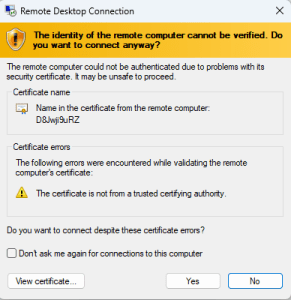
The first connection shows a certificate warning. Confirm it to continue to the server.
Note: Windows Home editions do not include the built-in Remote Desktop client, so you will need a third-party RDP app. To check your edition, type winver in the Run window.
Linux servers do not use RDP. You connect over SSH instead, from a terminal on macOS or Linux, or with PuTTY on Windows.
root and your SSH password.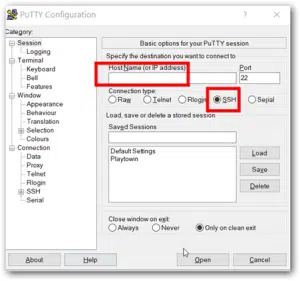
In PuTTY, enter the server IP as the Host Name, keep SSH and port 22, then click Open.
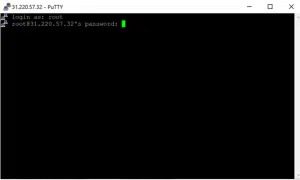
Type root at the login prompt, then your SSH password.
From a Mac or Linux terminal the same connection is a single command: ssh root@YOUR_SERVER_IP
administrator and the password you chose when creating the server.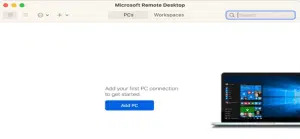
Open Microsoft Remote Desktop and click Add PC.
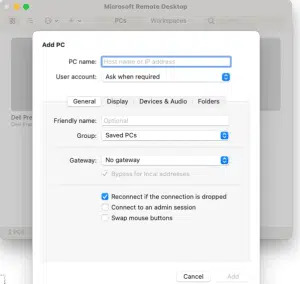
In the Add PC dialog, type the server IP as the PC name. The app asks for the administrator password when you connect.
In the OMC Cloud web console. It appears as soon as the server or desktop has been created.
administrator for Windows servers and root for Linux servers. The password is the one you chose when you created the server.
No. Linux servers are reached over SSH, with PuTTY on Windows or the ssh command on macOS and Linux.
Windows Home editions do not include the built-in client. Run winver to check your edition, and install a third-party RDP app if you are on Home.
Connecting to your OMC Cloud server takes a minute once you have the IP address, username and password from your console. Use Remote Desktop (mstsc) for Windows servers, SSH on port 22 for Linux servers, and Microsoft Remote Desktop when you work from a Mac. If you get stuck at any step, our 24/7 support team is here to help.
Join the tens of thousands of customers who rely on OMC every day
By signing up you agree to the terms of service
Get a personalized quote within the next half hour
By signing up you agree to the terms of service
© 2026 O.M.C Computers & Communications Ltd., all rights reserved