OMC Cloud Firewall Guide
Published: Updated:
Guides

Short version: every OMC Cloud server comes with a free, built-in firewall in the cloud console. Turn it on in the server's Firewall tab, keep the Input Policy on DROP and the Output Policy on ACCEPT, and open only the ports you actually need (for example SSH on 22 or RDP on 3389), and only to IP addresses you trust. IP Sets and IP Aliases save you from typing the same addresses into every rule.

In the server's Firewall tab, check Firewall is Enabled.
Recommended defaults:
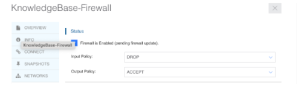
Input Policy on DROP, Output Policy on ACCEPT.
Click the blue Add Rule button and fill in the fields. Here are the two most common examples.
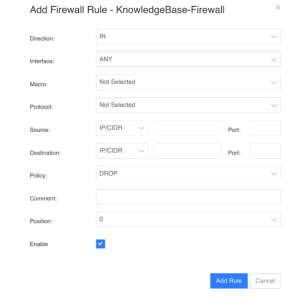
A rule that allows SSH on port 22 from the office IP only.
A terminal server (RDP) listens on port 3389 by default. To allow access only from one address or range:
When you add a new rule, pick the list in the Source field instead of typing each address by hand.

A list of authorised addresses (IP Set) that any rule can use.
An IP Alias gives a simple name to an address or range you use regularly. For example:
Aliases make new rules faster to add and the rule list easier to read.

The rule list: each rule with its direction, protocol, source, port and comment.
No. It is built into the OMC Cloud console and available on every server at no extra cost and with nothing to install.
ACCEPT lets matching traffic through. DROP blocks it silently, without replying to the sender.
If your IP address changes or a rule is deleted by mistake, you can fix the rules in the cloud console, which does not depend on the server's firewall. Our support team can help if needed.
No. That is one of the most common ways to attract brute-force attacks. Allow access only from known addresses, ideally through an IP Set.
The free OMC Cloud firewall gives every cloud server solid protection at no extra cost: switch it on, block by default, and open only what is needed to only those who need it. IP Sets and Aliases keep the rules simple to manage. Need a hand with the setup? Our experts are always here to help.
Join the tens of thousands of customers who rely on OMC every day
By signing up you agree to the terms of service
Get a personalized quote within the next half hour
By signing up you agree to the terms of service
2025 OMC, Inc., all rights reserved